
Automatic Verification of Crowd Characters
Know on every commit if your Characters have mesh collisions
Popul8 Express helps you reduce manual work while improving output quality. We help tech art leads and engineers run QA on entire crowds automatically, ensuring there are no intersections between your Characters and Garments meshes — before game integration.
This way, with every update on your asset repository, you can easily run Popul8 Express Verification & QA system in your existing Continuous Integration Pipeline.
Automation with Popul8 CLI
Popul8 Express's verify command generates HTML reports that highlight intersections between shapes, templates, and deformables in your Popul8 project. Integrating this into your CI/CD pipeline ensures that asset quality issues are caught early in your development workflow and before integrating into the game.
Prerequisites
Before setting up automated verification, ensure you have:
- A GitLab runner configured for your project (see CI/CD Environment)
- A Popul8 project (
.pp8file) in your repository.
An up to date "Popul8 CI Example" project is available as a downloadable package in Popul8.
Popul8 CLI Verify Command
The verify command is part of the Popul8 CLI tool. (see Headless and CLI)
Command syntax:
popul8-cli verify <full/path/to/export/folder> [-i scope]Relevant options
| Option | Description | Values |
|---|---|---|
-i, --scope | What to verify | shapes, templates, all (default: templates) |
Example
popul8-cli verify ./verify_results -i templates GitLab CI Integration
Add a verification job to your .gitlab-ci.yml file to automatically check for intersections on every pipeline run.
Basic Example
stages:
  - verify

.variables_base: &variables_base
  POPUL8_CLI: "C:\\Program Files (x86)\\Popul8\\popul8-cli.exe"
  POPUL8_PATH: "C:\\Program Files (x86)\\Popul8\\Popul8.exe"
  POPUL8_LICENSE_PATH: ""
  POPUL8_PORT: "2055"
  POPUL8_PROJECT_PATH: "$CI_PROJECT_DIR\\Example-CI-Verify.pp8"
  POPUL8_VERIFY_DIR: "$CI_PROJECT_DIR\\verify_results"

.default_windows: &default_windows
  tags: ["windows"]

verify_assets:
  stage: verify
  <<: *default_windows
  variables:
    <<: *variables_base
  script:
    - |
      & "$POPUL8_CLI" --version
      & "$POPUL8_CLI" start "$POPUL8_PATH" -p "$POPUL8_PORT" --gui
      echo "Popul8 started"
      echo "Setting license..."
      & "$POPUL8_CLI" license "$POPUL8_LICENSE_PATH" -p "$POPUL8_PORT"
      echo "Opening project..."
      & "$POPUL8_CLI" open "$POPUL8_PROJECT_PATH" -p "$POPUL8_PORT"
      echo "Project opened"
    - |
      echo "Creating verify directory..."
      mkdir -p "$POPUL8_VERIFY_DIR"
      echo "Verifying assets..."
      & "$POPUL8_CLI" verify "$POPUL8_VERIFY_DIR" -p "$POPUL8_PORT" --scope templates
      echo "Verification completed"
    - |
      echo "Stopping Popul8..."
      & "$POPUL8_CLI" stop -p "$POPUL8_PORT"
  artifacts:
    when: always
    expire_in: 1 week
    paths:
      - verify_results/
  rules:
    - when: on_success
A more comprehensive example is available in Windows Gitlab CI Example, including a Troubleshooting section.
Using the Verification Report
After each verification job in the CI, you can read the Popul8 Verification Report and check the if updates to the assets have caused new intersections between the Characters and Deformables.
Download Artifacts from GitLab
- Navigate to your pipeline in GitLab
- Click on the verify-intersections job
- On the right sidebar, click Download under Job artifacts
Open the Report
- Extract the downloaded artifacts
- Locate
report.htmlin the subdirectory ofverify_resultsdirectory - Open
report.htmlin your web browser - Review the intersection details and affected assets
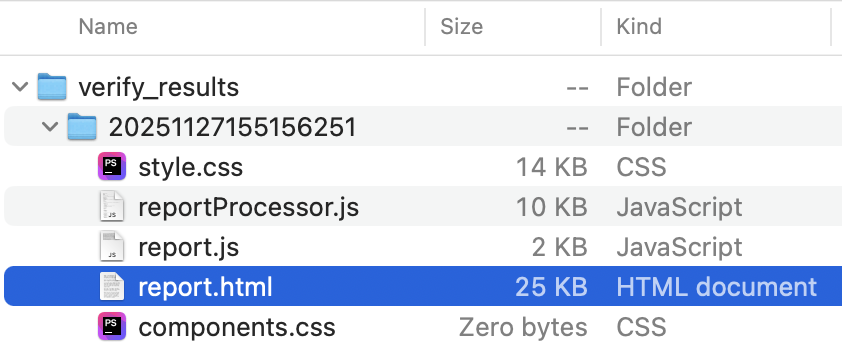
Location of report.html
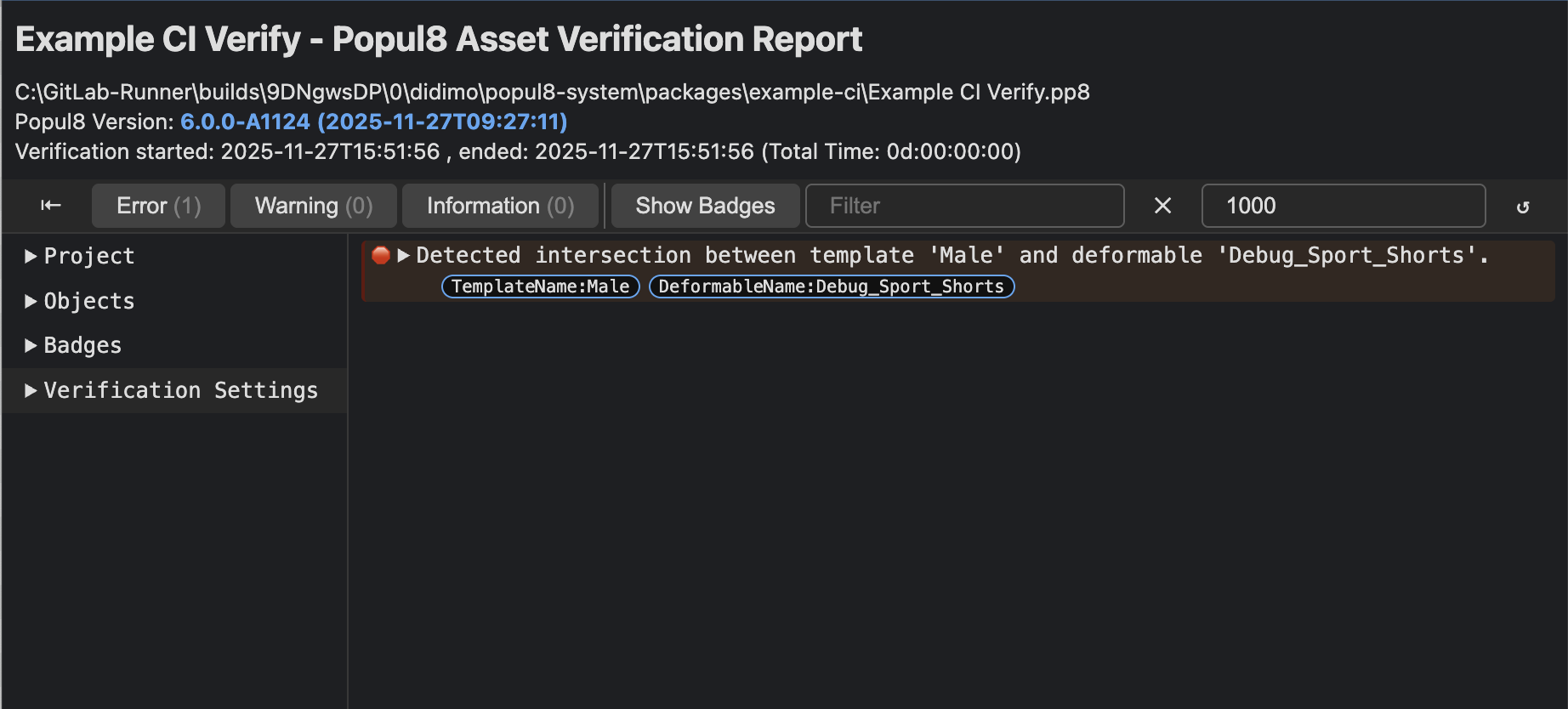
Example of report.html in browser showing one of intersection error
Fixing the Intersection
- Open the project in Popul8 Express
- Right Click in your project > Verify Intersections > All
- Note: this will run again the Intersection Verification in your local machine.
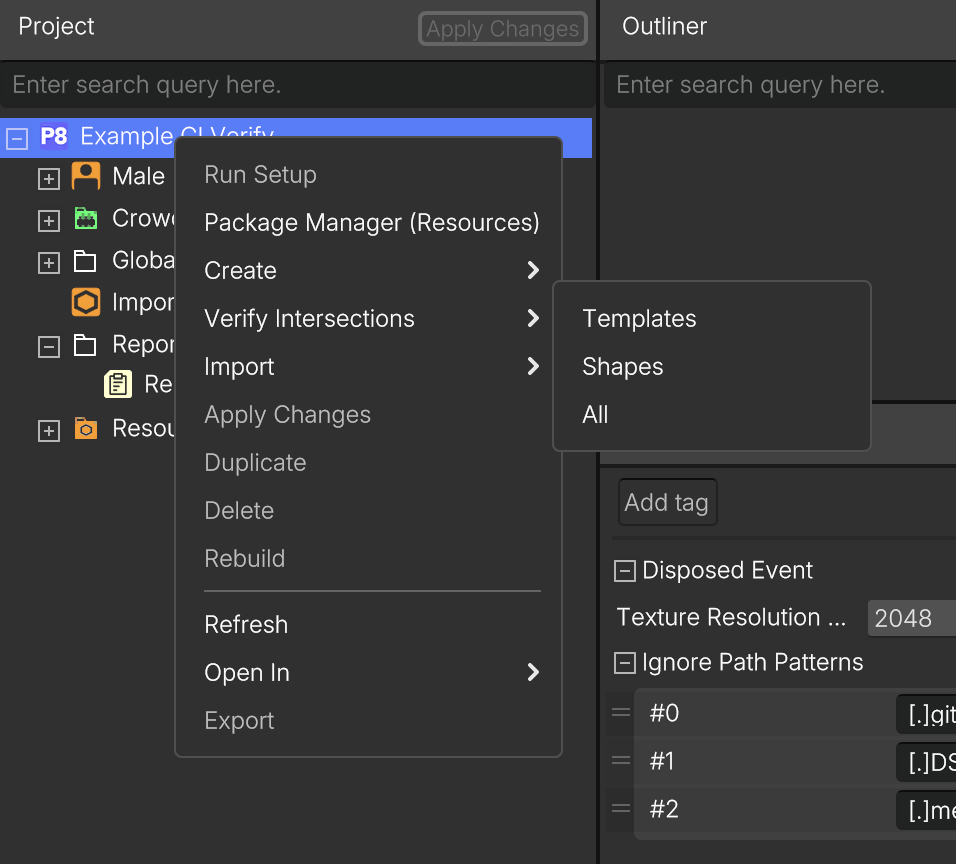
- Navigate to Reports and select the Report
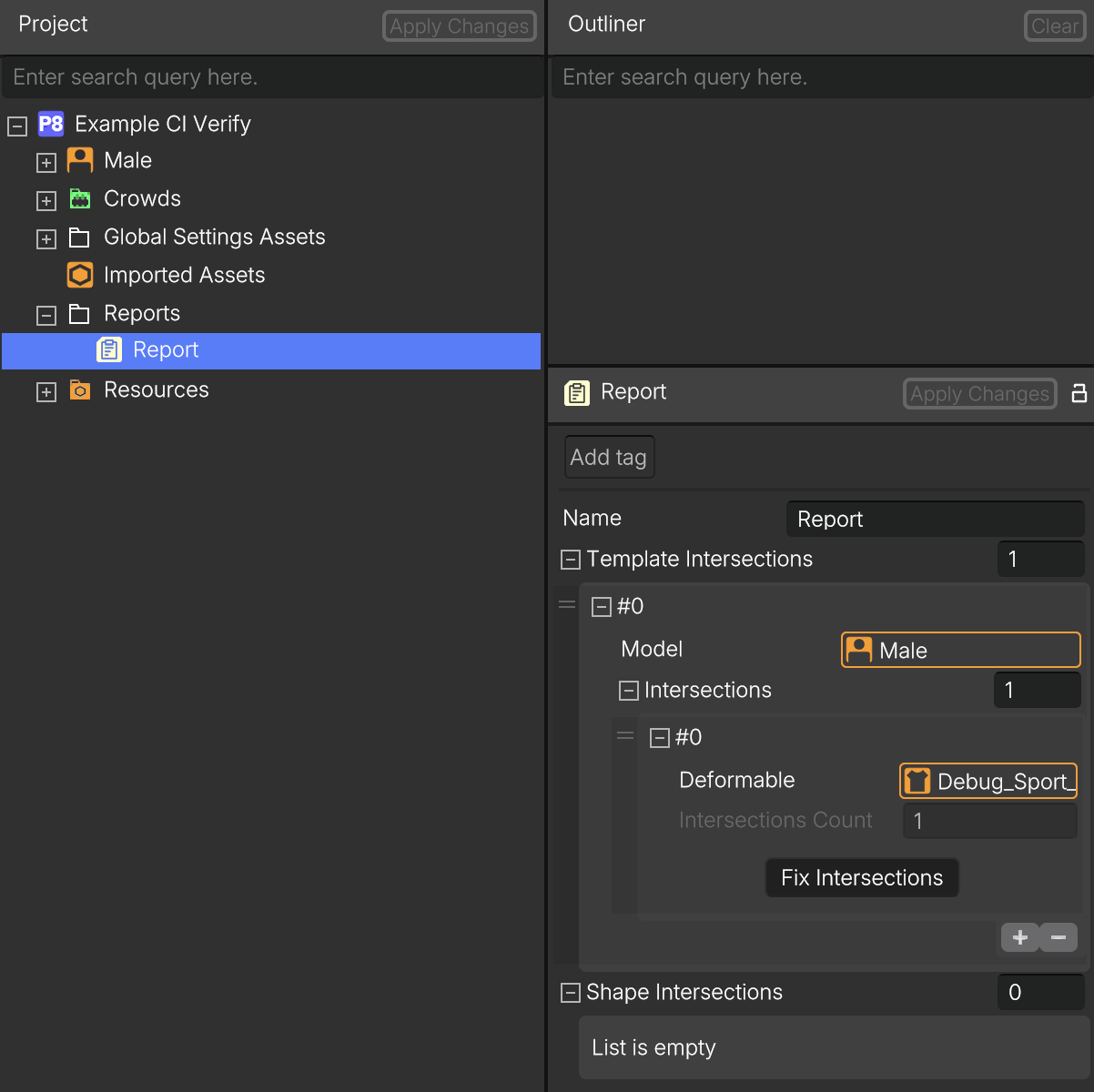
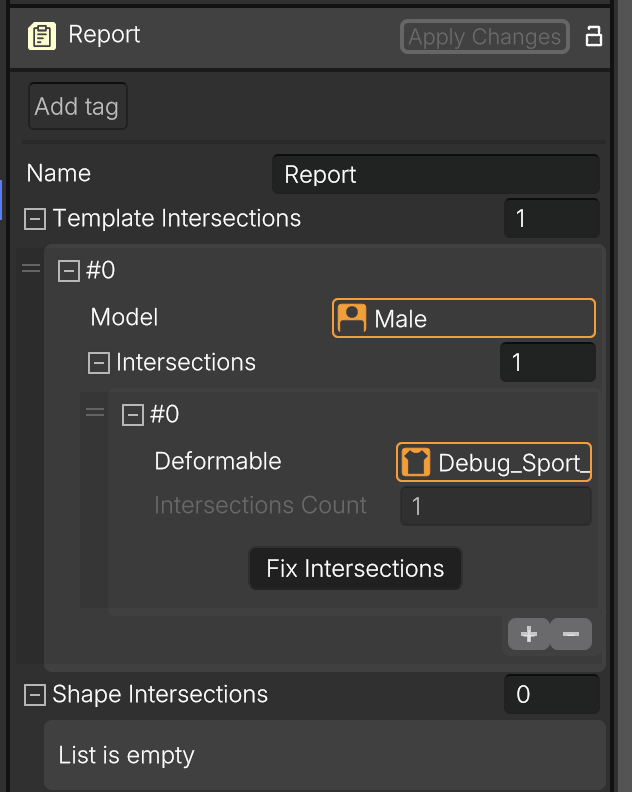
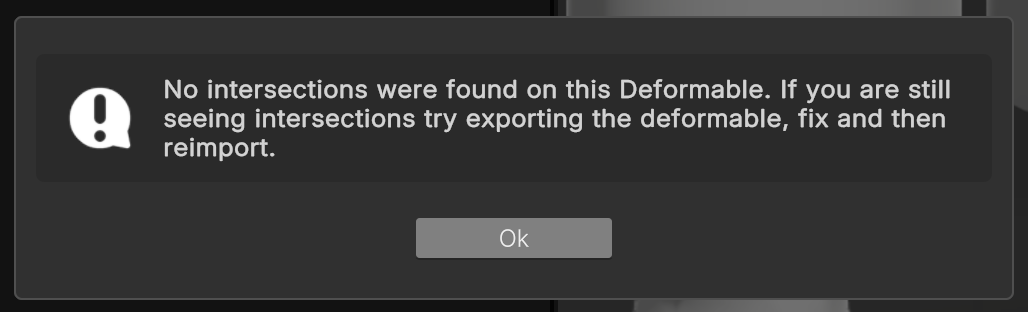
- Select the Intersection and Click on Fix Intersections
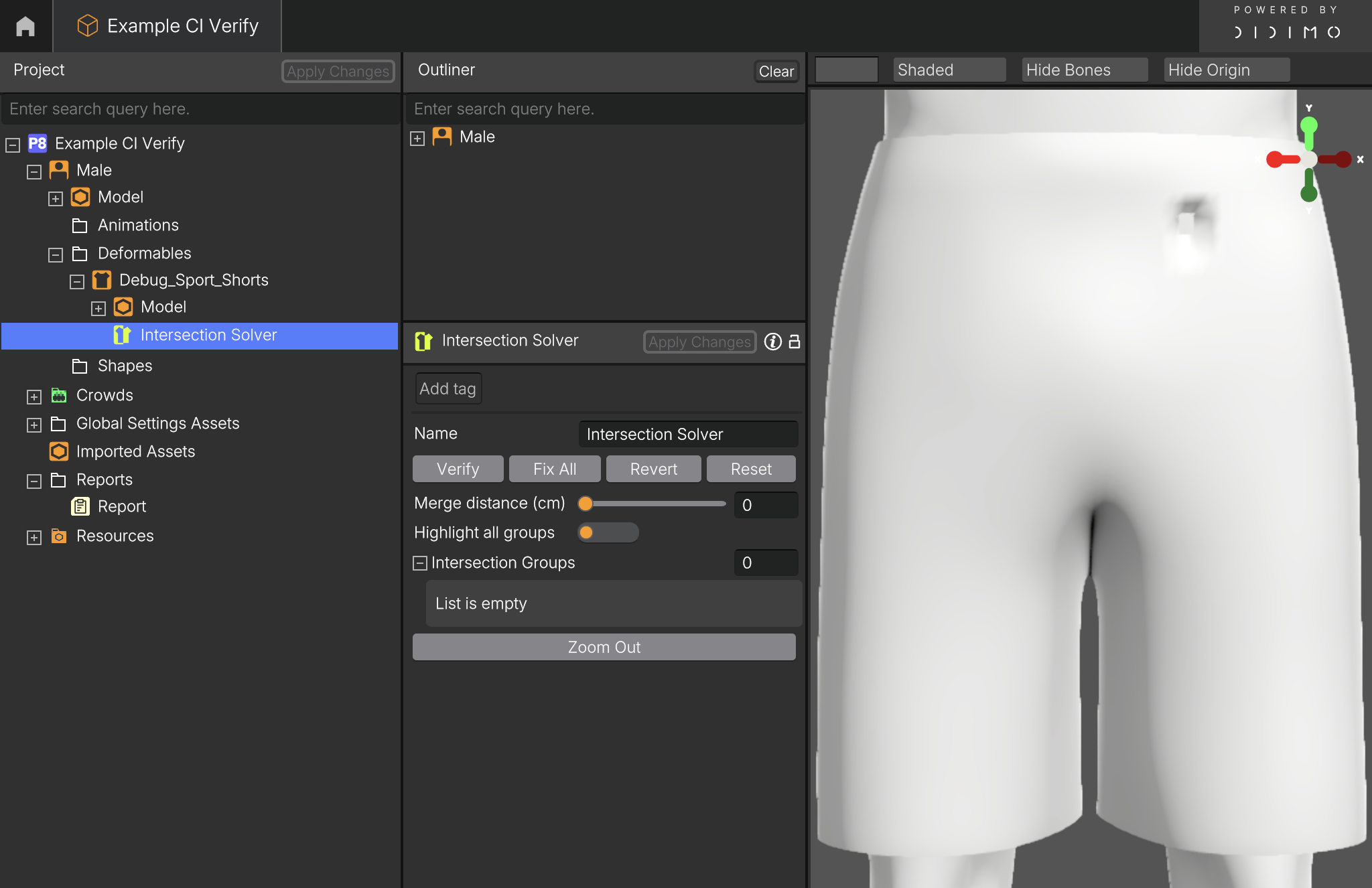
- In the Intersection Solver, click Verify
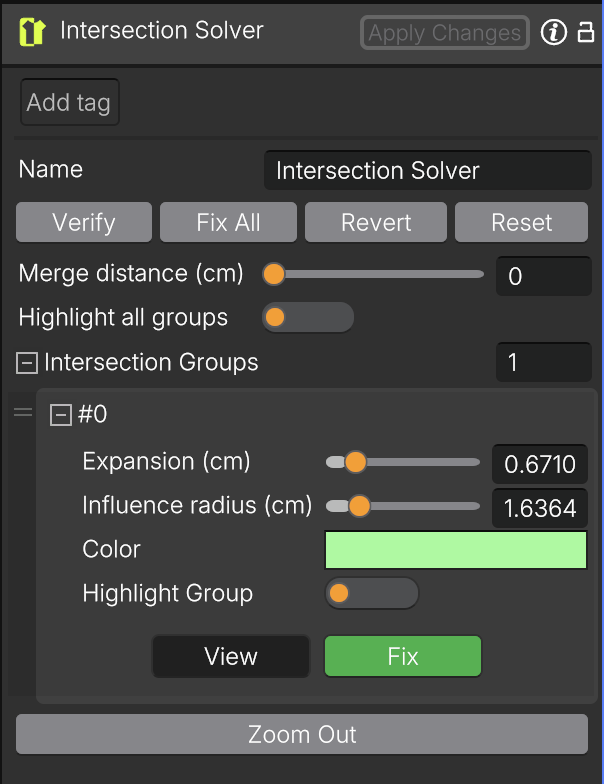
- And them click Fix
- Click Verify again in the Intersection Solver.
- The intersection is solved.
Updated 10 months ago
What’s Next
To fix the intersections, open the project in Popul8 and follow the next link: